> For the complete documentation index, see [llms.txt](https://helpcenter.gitprotect.io/llms.txt). Markdown versions of documentation pages are available by appending `.md` to page URLs; this page is available as [Markdown](https://helpcenter.gitprotect.io/backup-and-recovery/devops/bitbucket/integration/adding-bitbucket-organization-to-gitprotect.md).
# Adding Bitbucket organization to GitProtect
This article provides instructions for adding a Bitbucket organization to GitProtect.
## Using OAuth
{% stepper %}
{% step %}
Log in to **GitProtect Management Service**, open the **DevOps** tab on the left side of the window, and select **Bitbucket** from the list.
{% endstep %}
{% step %}
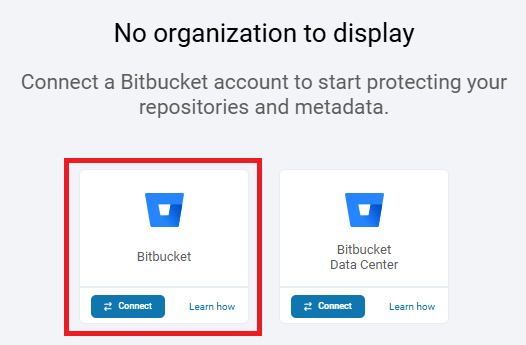
Click the **Connect** button under **Bitbucket**.
{% endstep %}
{% step %}
A pop-up with **Bitbucket** login page will appear. Log in using your admin credentials and grant **GitProtect** access to the specified resources (when prompted).
{% endstep %}
{% step %}
Your **Bitbucket** organization has now been successfully added to **GitProtect**. Click **Custom policy** to adjust your backup policy settings, or click **Run backup** to execute the backup immediately using the current policy configuration.
{% endstep %}
{% endstepper %}
***
## Using OAuth (Advanced Mode)
{% stepper %}
{% step %}
Log in to **GitProtect Management Service**, open the **DevOps** tab on the left side of the window, and select **Bitbucket** from the list.
{% endstep %}
{% step %}
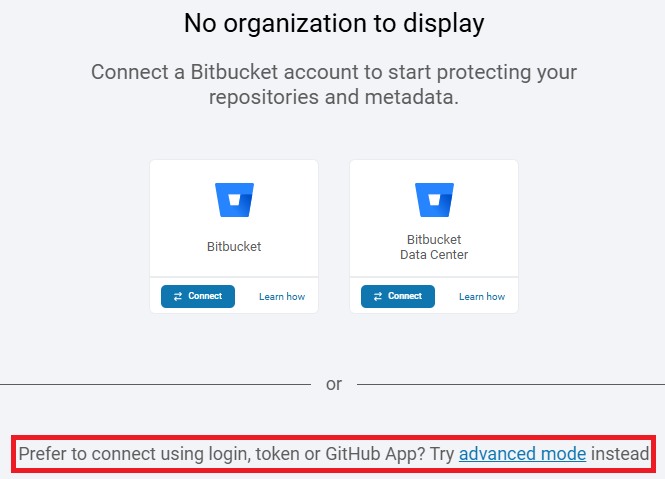
Click the **advanced mode** link under **Bitbucket** and **Bitbucket DC** tiles.
{% endstep %}
{% step %}
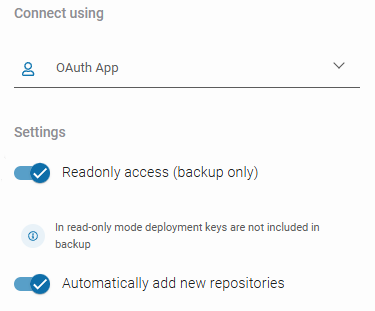
Set your authentication method.
1. In **Authentication**, select **Bitbucket**.
2. For **Connect using**, choose **OAuth App**.
3. In the **Settings** section, choose whether to enable **read-only mode** and whether **GitProtect** should automatically add new repositories to your backup.
{% hint style="warning" %}
If the **Read-Only Access** switch is enabled, the recovery options will be disabled.
{% endhint %}
{% endstep %}
{% step %}
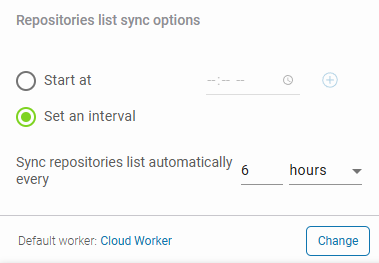
Configure your repository sync and default worker. Specify hours for synchronization, or set a time interval for automatic updates.
{% endstep %}
{% step %}
Click **Proceed** to complete adding your **Bitbucket** organization and grant **GitProtect** access to the specified resources (when prompted).
{% endstep %}
{% endstepper %}
***
## Using an API token
{% stepper %}
{% step %}
Log in to **GitProtect Management Service**, open the **DevOps** tab on the left side of the window, and select **Bitbucket** from the list.
{% endstep %}
{% step %}
Click the **advanced mode** link under **Bitbucket** and **Bitbucket DC** tiles.
{% endstep %}
{% step %}
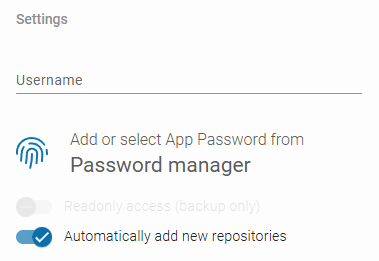
Set your authentication method.
1. In **Authentication**, select **Bitbucket**.
2. For **Connect using**, choose **Username and App password**.
3. Enter your **Bitbucket** email address.
4. Add or select **App Password** that contains your API token from the **Password Manager**.
5. Choose whether **GitProtect** should automatically add new repositories to your backup.
{% endstep %}
{% step %}
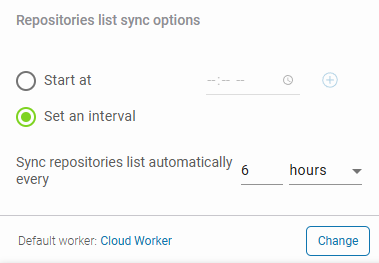
Configure your repository sync and default worker. Specify hours for synchronization, or set a time interval for automatic updates.
{% endstep %}
{% step %}
Click **Proceed** to complete adding your **Bitbucket** organization and grant **GitProtect** access to the specified resources.
{% endstep %}
{% endstepper %}
***
## Additional browser permissions
When adding an organization, you may be prompted to grant additional permissions to the **GitProtect** application—make sure your browser allows **GitProtect** to open pop-up windows.
Depending on your browser, you can either adjust the settings to allow pop-ups or permit the authorization window to open once.
***
## Useful links and items
{% embed url="" %}


.png?alt=media)
.PNG?alt=media)
