> For the complete documentation index, see [llms.txt](https://helpcenter.gitprotect.io/llms.txt). Markdown versions of documentation pages are available by appending `.md` to page URLs; this page is available as [Markdown](https://helpcenter.gitprotect.io/backup-and-recovery/devops/general/wiki-recovery-for-devops-organizations.md).
# Wiki recovery for DevOps organizations
How to restore a DevOps organization wiki and its metadata separately.
**Recovering an organization wiki restores lost or overwritten documentation, enabling projects to quickly regain access to their knowledge base without affecting other repository or project metadata.**
***
## Recovery process for Bitbucket, GitHub, and GitLab
The following steps demonstrate how to quickly recover your wiki using **GitProtect Management Service**.
{% stepper %}
{% step %}
Get into the restore view using the following method:
1. Open the appropriate **DevOps** tab, then click the **Explore** button next to the organization whose backup you want to restore (explore icon  in list view).
2. Search for the repository containing the wiki you want to restore, then click the restore icon  in the action menu of that repository.
{% endstep %}
{% step %}
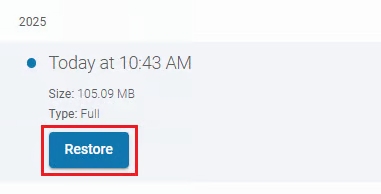
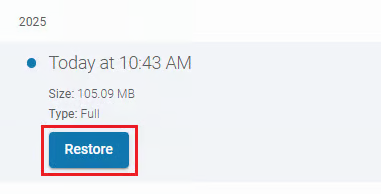
In the **Backup plans** section, select the appropriate backup plan, then go to the **Backup copies** section to choose the point in time from which you want to restore your wiki.
{% endstep %}
{% step %}
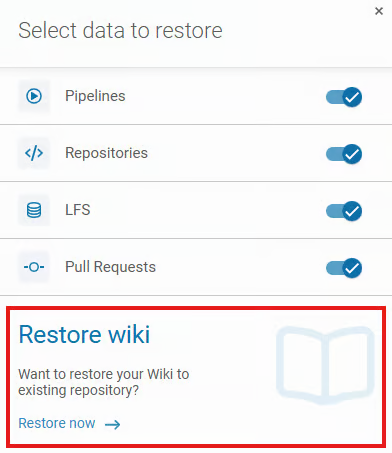
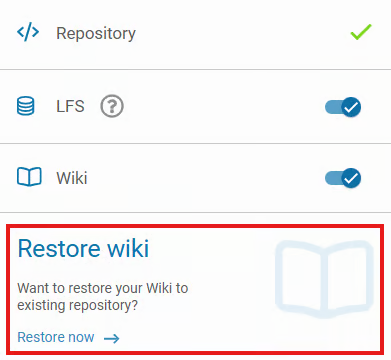
Select the **Restore now** button in the **Restore wiki** section to configure the restoration settings.
{% endstep %}
{% step %}
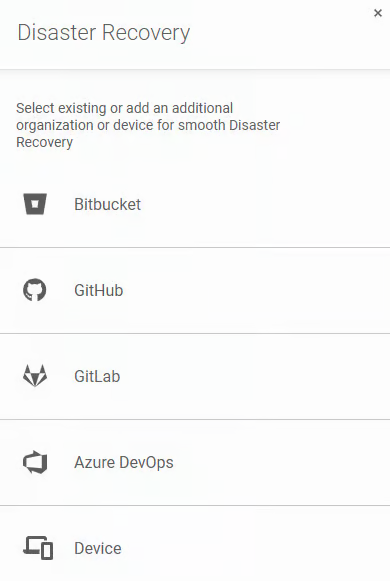
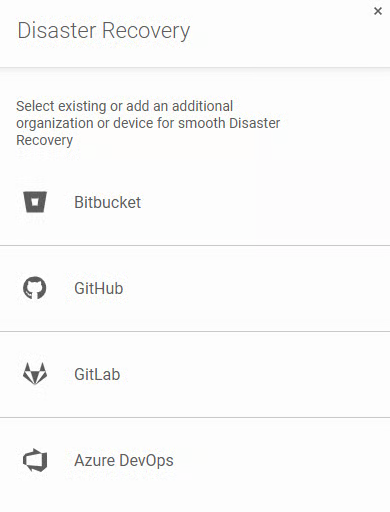
Select the destination for the recovery and click **Next**.
{% hint style="info" %}
You can choose any organization registered in **GitProtect** (you can find more information about cross-recovery in **Useful links and items section**).
{% endhint %}
{% hint style="danger" %}
If your destination is **GitHub**, make sure that your repository has **at least one wiki page created**.
{% endhint %}
{% endstep %}
{% step %}
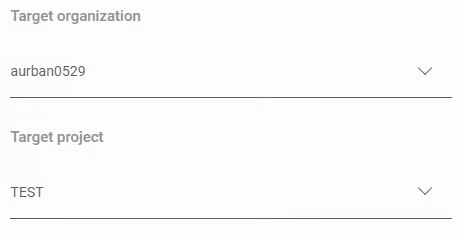
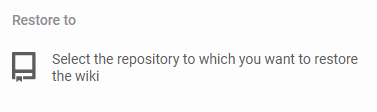
In the **Restore to** section, select the repository where you want to restore the wiki. If you are restoring the wiki to an **Azure DevOps** or **Azure DevOps Server** organization, also select the target project.
{% endstep %}
{% step %}
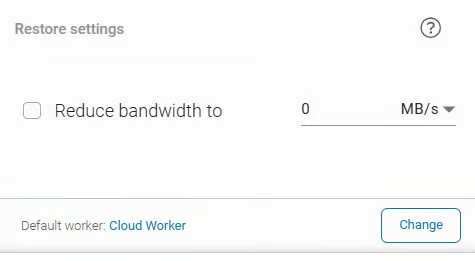
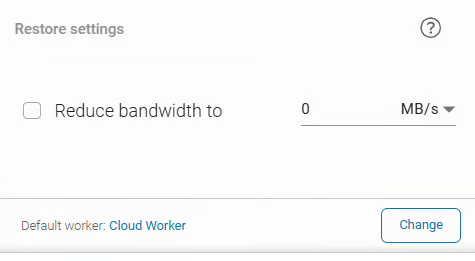
In the **Restore settings** section, you can limit the bandwidth if required by your network infrastructure and change the device that will perform the restoration.
{% endstep %}
{% step %}
Once all parameters are defined, click **Restore** to start the recovery process. You can monitor the progress in the **Tasks** tab; once finished, the wiki will be available in the defined organization account.
{% endstep %}
{% endstepper %}
***
## Recovery process for Azure DevOps & DevOps Server
The following steps demonstrate how to quickly recover your **Azure DevOps** project wiki using **GitProtect Management Service**.
{% stepper %}
{% step %}
Get into the restore view using the following method:
1. Open the appropriate **DevOps** tab, then click the **Explore** button next to the organization whose backup you want to restore (explore icon in list view).
2. In the **Projects & repositories** tab, search for the project containing the wiki you want to restore, then click the restore icon in the action menu of that project.
{% endstep %}
{% step %}
In the **Backup plans** section, select the appropriate backup plan, then go to the **Backup copies** section to choose the point in time from which you want to restore your wiki.
{% endstep %}
{% step %}
Select the destination for the recovery and click **Next**.
{% hint style="info" %}
You can choose any organization registered in **GitProtect** (you can find more information about cross-recovery in **Useful links and items section**).
{% endhint %}
{% hint style="danger" %}
If your destination is **GitHub**, make sure that your repository has **at least one wiki page created**.
{% endhint %}
{% endstep %}
{% step %}
Select the **Restore now** button in the **Restore wiki** section to configure the restoration settings.
{% endstep %}
{% step %}
In the **Restore to** section, select the repository where you want to restore the wiki. If you are restoring the wiki to an **Azure DevOps** or **Azure DevOps Server** organization, also select the target project.
{% endstep %}
{% step %}
In the **Restore settings** section, you can limit the bandwidth if required by your network infrastructure and change the device that will perform the restoration.
{% endstep %}
{% step %}
Once all parameters are defined, click **Restore** to start the recovery process. You can monitor the progress in the **Tasks** tab; once finished, the wiki will be available in the defined organization account.
{% endstep %}
{% endstepper %}
***
## Useful links and items
{% content-ref url="/pages/NqYA6IzA1GmHxLsZwtrZ" %}
[Cross-recovery for DevOps organizations](/backup-and-recovery/devops/general/cross-recovery-for-devops-organizations.md)
{% endcontent-ref %}
{% content-ref url="/pages/IiVUjDfL7V7Z9YEIHaQs" %}
[LFS recovery for DevOps organizations](/backup-and-recovery/devops/general/lfs-recovery-for-devops-organizations.md)
{% endcontent-ref %}

 icon in list view).
2. In the **Projects & repositories** tab, search for the project containing the wiki you want to restore, then click the restore
icon in list view).
2. In the **Projects & repositories** tab, search for the project containing the wiki you want to restore, then click the restore  icon in the action menu of that project.