> For the complete documentation index, see [llms.txt](https://helpcenter.gitprotect.io/llms.txt). Markdown versions of documentation pages are available by appending `.md` to page URLs; this page is available as [Markdown](https://helpcenter.gitprotect.io/backup-and-recovery/devops/github/recovery/single-repository-recovery.md).
# Single repository recovery
This article explains how to restore a single repository to a Git service or localhost.
## Recovery process
{% stepper %}
{% step %}
Get into the restore view using the following method:
1. Open the **GitHub** tab (**DevOps** > **GitHub**), then click the **Restore** button next to the organization whose backup you want to restore.
{% hint style="success" %}
You can also use the **Explore** button to restore your data.
{% endhint %}
2. Search for the repository you want to restore, and click the **Restore** button in the action menu of that repository.
{% endstep %}
{% step %}
Next, select the backup plan from which you want to restore data. Click **View available plans** and choose one of the plans from the list.
{% endstep %}
{% step %}
Choose the backup version from all the backups that have already been performed — select the desired date and click the **Restore** button.
{% hint style="success" %}
**GitProtect** allows you to select specific metadata to restore — each element can be included or excluded by toggling the switch next to it. Additionally, there is a **Wiki** recovery option below these settings. If your repository already exists in **GitHub**, you can choose to restore only the **Wiki**.
{% endhint %}
{% endstep %}
{% step %}
Select the destination for the restore process. You can choose one of the assigned organizations from any **Git** service or any device. After selecting the repository and the metadata you want to include, click the **Restore selected** or **Restore all** button to proceed.
{% endstep %}
{% step %}
In the next aside, click **Edit** next to **Data to restore** if you need to adjust it.
{% endstep %}
{% step %}
Next, select the destination where you want to restore the data.
{% hint style="danger" %} **Support for backing up projects (classic) has been removed.** It is now available only for restoring previously backed-up **projects (classic)** — when restored, **projects (classic)** are automatically converted into **projects v2**.
{% endhint %}
#### **A. Restore to a Git organization**
{% hint style="info" %}
During restoration to **GitHub**, the **Use existing projects instead of creating new ones option** becomes available. When restoring **projects v2**, this option restores the data into the existing projects rather than creating new ones.
{% endhint %}
In **Map organizations** section, select the target organization to which the repository will be restored.
{% hint style="info" %}
If the recovery destination is **Azure DevOps**, the **Map organizations** section will be replaced by **Target organization** and **Target project** settings.
{% endhint %}
In **Restore settings** you can set a custom name for the repository that will be created during the restore process and limit the internet bandwidth.
You can enter a new repository name in one of the following formats:
1. If you enter **organization/name** (e.g., **xsupport/test**), the repository will be restored with the chosen name in the specified organization. If the entered organization does not exist, the repository will be restored to the source organization.
2. If you enter **only the repository name** (e.g., **test**) and the source organization is registered in **GitProtect**, the repository will be restored there. If the organization is not registered, the repository will be restored to your account.
{% hint style="danger" %}
Restoring never overwrites existing repositories in the organization — if you do not choose a repository name, or if you enter the name of a repository that already exists in your organization, **the restore will fail**. To complete the restoration successfully, you must choose a unique repository name or select the **Add suffix to repo name** option so the restored repository keeps its original name with an automatically generated suffix.
{% endhint %}
#### **B. Restore to a device**
{% hint style="warning" %}
To restore a repository to a local device, you must have a **Git** client installed on that device.
{% endhint %}
{% hint style="danger" %}
You can restore **only the repository** (without metadata) when restoring data to local resources.
{% endhint %}
1. Select the destination device.
2. Make sure the device where you want to restore data has the **GitProtect agent** installed and the **Git** client added to the **PATH** environment variable. The **PATH** variable is usually configured automatically after **Git** installation (a system restart may be required). If it isn’t, set it manually to the path of the **git.exe** file: `C:\Program Files\Git\bin\git.exe`
{% hint style="info" %}
To configure the **PATH** variable, open the environment variables, select the **PATH** variable, and click the **Edit** button. Copy the path to the **git.exe** file and add it to the **PATH** variable.
{% endhint %}
3. Select the directory where you want the data to be restored.
{% hint style="success" %}
If a repository already exists in the selected folder, you can choose to overwrite the existing data.
{% endhint %}
{% endstep %}
{% step %}
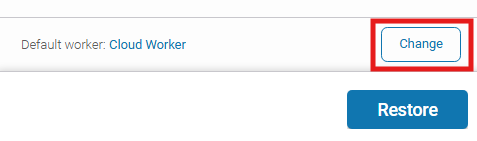
Choose the device that will be responsible for performing the restoration.
{% endstep %}
{% step %}
After defining all parameters, click the **Restore** button to begin the restore process. When the process is complete, a new repository will be created in your organization account.
{% hint style="warning" %}
**Closed** or **merged** pull requests are recovered as **closed issues**.
{% endhint %}
{% endstep %}
{% endstepper %}
***
## Restoration time
Extensive testing and analysis have shown that restoring repositories with many issues and pull requests significantly prolongs the restoration process. This delay is caused by limitations within **GitHub**’s infrastructure and the **API** used for repository restoration.
To speed up the repository access, **it is recommended** to exclude issues and pull requests during the initial restore. Once the repository is restored, you can perform a subsequent restore—including issues and pull requests—under a different repository name. This approach ensures quick access while still allowing full restoration of repository content.
***
## Useful links and items
{% content-ref url="/pages/AWu8w4uJUkVdjFTGajr0" %}
[GitProtect worker](/deployment-and-configuration/gitprotect-worker.md)
{% endcontent-ref %}
{% content-ref url="/pages/NqYA6IzA1GmHxLsZwtrZ" %}
[Cross-recovery for DevOps organizations](/backup-and-recovery/devops/general/cross-recovery-for-devops-organizations.md)
{% endcontent-ref %}
{% content-ref url="/pages/IiVUjDfL7V7Z9YEIHaQs" %}
[LFS recovery for DevOps organizations](/backup-and-recovery/devops/general/lfs-recovery-for-devops-organizations.md)
{% endcontent-ref %}
{% content-ref url="/pages/KUrX1uY5hrsK7Rn9NVmn" %}
[Wiki recovery for DevOps organizations](/backup-and-recovery/devops/general/wiki-recovery-for-devops-organizations.md)
{% endcontent-ref %}
{% content-ref url="/pages/ajngMEBoS6fhnIrEkYfE" %}
[Throttling prevention](/rate-limiting-and-throttling/throttling-prevention.md)
{% endcontent-ref %}

.png?alt=media)
.png?alt=media)
.png?alt=media)
.png?alt=media)

.png?alt=media)
.png?alt=media)
.png?alt=media)