> For the complete documentation index, see [llms.txt](https://helpcenter.gitprotect.io/llms.txt). Markdown versions of documentation pages are available by appending `.md` to page URLs; this page is available as [Markdown](https://helpcenter.gitprotect.io/backup-and-recovery/jira/recovery/granular-recovery.md).
# Granular recovery
In this article, you will learn how to recover your Jira organization data using the granular restore option.
#### Jira granular recovery enables you to restore selected Jira items such as work items, attachments, or configuration elements, giving you precise control over what is brought back without affecting the rest of your space data.
***
## Recovery process
{% hint style="info" %}
When restoring **Jira** automation rules associated with an assets schema (i.e., during a granular restore to another organization or a disaster recovery where the target organization already contains assets), a different assets schema may be attached to the restored rule component. This behavior is the same as when rules are manually imported through the **Jira** UI.
{% endhint %}
{% hint style="danger" %}
Connections to external services (i.e., **Google Drive**) are **not restored** in automation components when restoring data in disaster recovery mode or to another organization.
{% endhint %}
{% stepper %}
{% step %}
Get into the restore view using the following method:
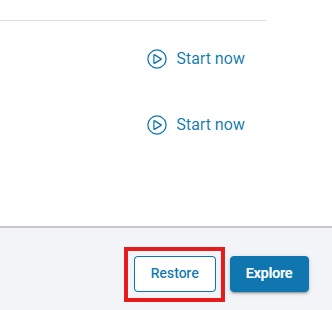
1. Open the **Jira** tab (**DevOps** > **Jira**), then click the **Restore** button next to the organization whose backup you want to restore.
{% hint style="success" %}
You can also use the **Explore** button to restore your data.
{% endhint %}
{% endstep %}
{% step %}
Next, select the backup plan from which you want to restore data.
{% endstep %}
{% step %}
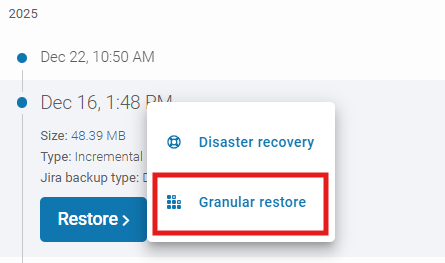
Choose the backup version from all the backups that have already been performed — select the desired date and click the **Restore** button.
{% hint style="warning" %}
If you are restoring data from a **disaster recovery** backup copy, you must also select the restoration method.
{% endhint %}
{% endstep %}
{% step %}
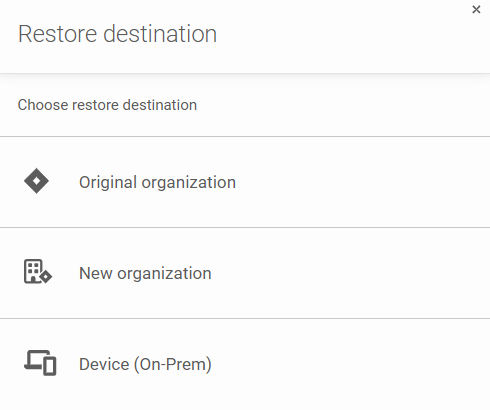
Select the available destination for the restore process from the list.
{% hint style="warning" %}
Please note that when you recover **Jira** data to a device, the amount of data available for recovery will be limited—certain **Jira** components and metadata are only supported when restoring directly to a **Jira** instance.
{% endhint %}
{% endstep %}
{% step %}
In the next aside, choose the resources you want to include (restore option) and click **Next**. Then, select data to restore and click **Proceed**.
{% endstep %}
{% step %}
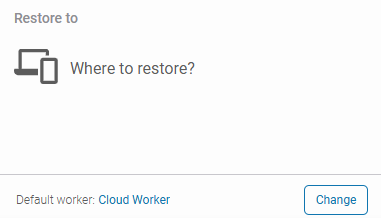
In the next aside, specify the restoration path and directory (where applicable). In **Default worker** section, choose the **worker** that will be responsible for performing the restoration.
{% endstep %}
{% step %}
In **Restore settings** you can set a custom name for the space that will be created during the restore process. You can also decide if you want to restore automation rules, their owners, etc. Visible options will vary depending on the restoration type.
{% endstep %}
{% step %}
When restoring spaces, you can preserve the original work item keys by enabling the **Restore required global resources** option and then enabling **Restore original work item keys to a custom field**.
{% hint style="info" %}
Original work item keys are mapped to the `GitProtect_Original Key` custom field.
{% endhint %}
{% endstep %}
{% step %}
After defining all parameters, click the **Restore** button to begin the recovery process. You can monitor its status in the **Tasks** tab.
{% endstep %}
{% endstepper %}