> For the complete documentation index, see [llms.txt](https://helpcenter.gitprotect.io/llms.txt). Markdown versions of documentation pages are available by appending `.md` to page URLs; this page is available as [Markdown](https://helpcenter.gitprotect.io/backup-and-recovery/microsoft-365/integration/enabling-sharepoint-protection-in-gitprotect.md).
# Enabling SharePoint protection in GitProtect
How to integrate a Microsoft 365 organization with GitProtect and include SharePoint protection.
**Enabling SharePoint protection in GitProtect allows SharePoint sites to be included in the Microsoft 365 backup scope. The setup follows the same tenant-based flow used for other Microsoft 365 resources and requires that the necessary prerequisites and permissions are in place before backup configuration is started.**
***
## Important notice
The following documentation applies only to **Microsoft 365** organizations with **GitProtect** licenses (**Microsoft 365 PRO**) that include backup for **Microsoft Exchange** data (including individual mailboxes, shared mailboxes, calendars, and contacts), **SharePoint**, and **OneDrive**.
For instructions on adding **Microsoft 365** tenants with only **Microsoft Exchange** and **OneDrive** protection to **GitProtect**, see [this article](/backup-and-recovery/microsoft-365/integration/adding-microsoft-365-tenant-to-gitprotect.md).
***
## Adding new Microsoft 365 organization with SharePoint protection
The below steps demonstrate how to integrate a **Microsoft 365** organization with **GitProtect** using **GitProtect Management Service**.
{% stepper %}
{% step %}
Select **Microsoft 365** from the left pane.
{% endstep %}
{% step %}
Click **Connect** under **Microsoft 365 Pro**.
{% hint style="info" %}
If you already have a **Microsoft 365** organization added, click the **+ Add new** button in the top-left corner first.
{% endhint %}
{% endstep %}
{% step %}
In the **Add new organization** pane, click **Advanced configuration** at the bottom of the pane.
{% endstep %}
{% step %}
In **Advanced configuration**, enable the **Enable SharePoint protection** switch, and specify whether **GitProtect** should automatically assign licenses to users.
{% endstep %}
{% step %}
Next, click the **Add new or select certificate from (…)** tile. In the **Add certificate** pane, select the certificate option that aligns with your deployment model: automatically generate a certificate, upload a custom certificate, or select an existing certificate from the list. Once done, click **Save**.
{% endstep %}
{% step %}
Set the synchronization interval (if needed), review your settings, and click **Save** to proceed.
{% endstep %}
{% step %}
Back in the **Add new organization** pane, copy the authentication code, and then click **Log in to Microsoft 365**.
{% endstep %}
{% step %}
In the **Microsoft** authentication tab, paste the copied code and click **Next**.
{% endstep %}
{% step %}
Select your account and sign in if prompted. Next, click **Continue** to confirm your sign-in to **Xopero Registrator**.
{% endstep %}
{% step %}
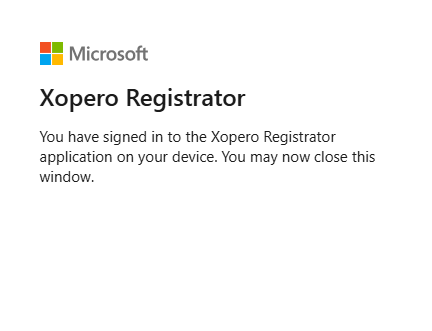
If the registration is completed successfully, the following message will appear. Close the tab and return to **GitProtect Management Service**.
{% endstep %}
{% step %}
The **Microsoft 365** organization has been successfully added to **GitProtect**. Click **Custom policy** to modify your backup policy settings, or click **Run backup** to start a backup using the current policy configuration.
{% endstep %}
{% endstepper %}
***
## Enabling SharePoint protection for existing organizations
The following steps demonstrate how to enable **SharePoint** protection for existing **Microsoft 365** organizations using **GitProtect Management Service**.
{% hint style="warning" %}
To enable **SharePoint** protection for an existing **Microsoft 365** organization, you must have the **Microsoft 365 PRO** license.
{% endhint %}
{% stepper %}
{% step %}
Select **Microsoft 365** from the left pane.
{% endstep %}
{% step %}
Click **Edit** in the lower-left corner of the organization tile.
{% endstep %}
{% step %}
In **Settings** section, turn on the **Enable SharePoint protection** switch, and then click the **Add new or select certificate from (…)** tile.
{% endstep %}
{% step %}
In the **Add certificate** pane, select the certificate option that aligns with your deployment model: automatically generate a certificate, upload a custom certificate, or select an existing certificate from the list. Once done, click **Save**.
{% endstep %}
{% step %}
The system will automatically prompt you to create or run a default backup plan. You can skip this step and configure the **SharePoint** backup plan later.
{% endstep %}
{% step %}
Back in the **Microsoft 365** organization dashboard, click **Repair** to configure permissions for **SharePoint** protection.
{% endstep %}
{% step %}
To start the permission update process, click **Continue** at the bottom of the **Edit organization** pane. If prompted, sign in to your **Microsoft 365** account and grant **GitProtect** the required permissions.
{% endstep %}
{% step %}
After the required permissions have been granted, you can configure a **SharePoint** backup plan and start protecting your resources.
{% endstep %}
{% endstepper %}
***
## Useful links and items
{% content-ref url="/pages/ezmIfnTo5tG6rORWzKlF" %}
[Licensing overview](/gitprotect/licensing-overview.md)
{% endcontent-ref %}
{% content-ref url="/pages/uv6Gm8udM6Sv8Ki6VzrB" %}
[Required permissions](/backup-and-recovery/microsoft-365/integration/required-permissions.md)
{% endcontent-ref %}
{% content-ref url="/pages/htBWjAiGXBuaKq8W1LTX" %}
[Adding Microsoft 365 tenant to GitProtect](/backup-and-recovery/microsoft-365/integration/adding-microsoft-365-tenant-to-gitprotect.md)
{% endcontent-ref %}