> For the complete documentation index, see [llms.txt](https://helpcenter.gitprotect.io/llms.txt). Markdown versions of documentation pages are available by appending `.md` to page URLs; this page is available as [Markdown](https://helpcenter.gitprotect.io/management/dashboard/sla-overview.md).
# SLA overview
Learn about SLA reports: how to interpret them and how to generate them.
**The SLA tile on the GitProtect Management Service dashboard provides a consolidated view of backup performance against defined SLA parameters, enabling administrators to monitor protected organizations and verify compliance with core objectives and scheduled backup frequency requirements.**
***
## General information
The SLA (service-level agreement) report provides a summary of backup performance within the protected environment over a specified period. Its graphical representation allows administrators to quickly evaluate the protection level of secured systems and take appropriate action if it is considered insufficient.
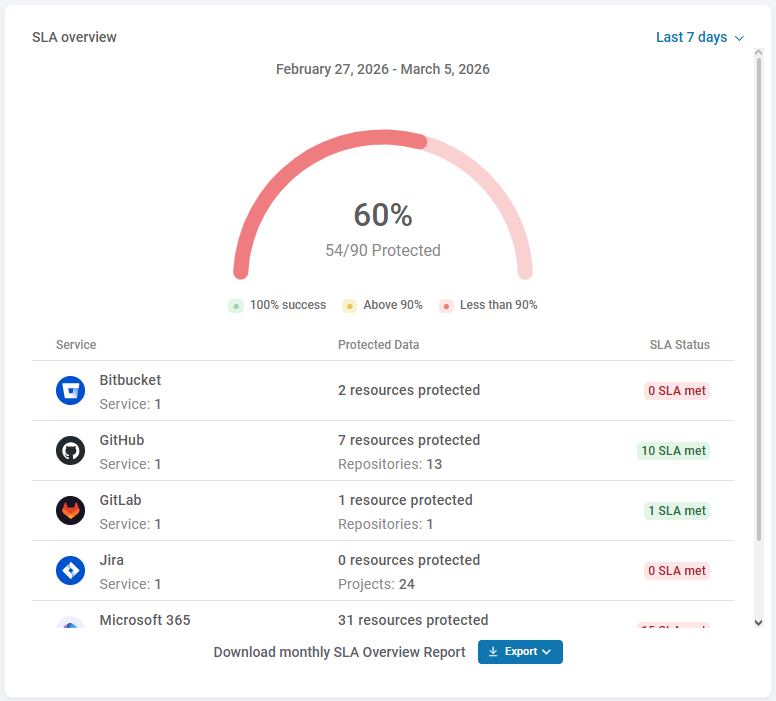
The **SLA overview** tile shows how many resources of each type have had at least one successful backup within the selected time frame: 7 days, 14 days, or 30 days.
***
## Interpreting the report results
The gauge chart represents the entire protected environment and shows the percentage and number of resources that are included in at least one active backup plan.
The list below the gauge chart displays the SLA status broken down by specific types of protected environments, such as: **DevOps**, **Microsoft 365**, and **Jira**. Resources with at least one successful backup within the selected time frame are considered to have met the SLA.
The SLA status of individual service environments is color-coded: green signifies successfully executed backups, yellow indicates that more than 90% of backups were completed successfully, and red denotes that fewer than 90% of backups were completed successfully.
***
## Exporting the report
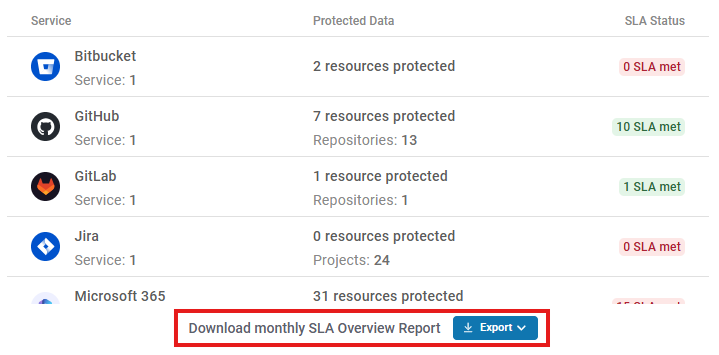
To export the SLA monthly report, click the **Export** button located below the services list and select the desired time frame. The SLA report will open in a separate window — review its contents, click the **Download** button in the top-right corner, and save the report using the **Save as PDF** option.
{% hint style="info" %}
The exported report provides a monthly summary of backup performance for the monitored environments, including a weekly breakdown.
{% endhint %}
***
## Email notifications
SLA reports can be automatically generated and sent via email to a specified address. **Reports are delivered on a monthly basis.**
To receive SLA reports, open **Settings**, turn on the **Email notifications** switch, and click the tile to access the configuration menu:
1. In the **Recipients** menu, enter the email address that will receive the report.
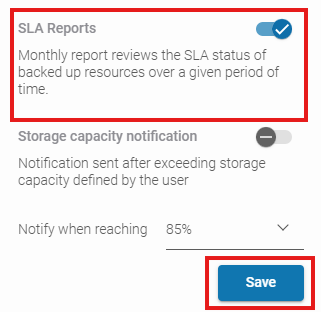
2. In the **Email notifications** menu, scroll to the bottom, enable the **SLA Reports** switch, and then click **Save** to apply the changes.
***
## Useful links and items
{% content-ref url="/pages/3HE7ntkHh2uMlCKLZhf7" %}
[Email notifications](/management/notifications/email-notifications.md)
{% endcontent-ref %}
 **Settings**, turn on the **Email notifications** switch, and click the tile to access the configuration menu:
1. In the **Recipients** menu, enter the email address that will receive the report.
2. In the **Email notifications** menu, scroll to the bottom, enable the **SLA Reports** switch, and then click **Save** to apply the changes.
**Settings**, turn on the **Email notifications** switch, and click the tile to access the configuration menu:
1. In the **Recipients** menu, enter the email address that will receive the report.
2. In the **Email notifications** menu, scroll to the bottom, enable the **SLA Reports** switch, and then click **Save** to apply the changes.