# Logs

#### Logs in **GitProtect Management Service** provide detailed records of backup activities, system operations, and events.

***

## Overview

The **Logs** tab in **GitProtect Management Service** provides information about every event occurring in **GitProtect** backup system (i.e., logging in to **Management Service**, backup task status, etc.).

The system relies on lightweight, high-performance databases to efficiently handle and store data. From the moment the service is activated, every log entry is recorded and preserved, ensuring a complete and continuous history of system activity.

{% hint style="danger" %}
Please note that excessive generation of log entries may affect the performance and stability of the log database.
{% endhint %}

Archiving older logs helps maintain system efficiency. **GitProtect** includes a log archiving feature that keeps archived logs fully accessible and searchable.

***

## Logs archiving

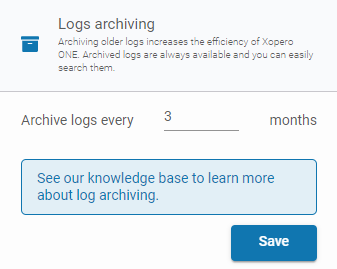
To configure log archiving, click the ⚙️ **Settings** icon at the bottom of the left-hand menu, then select **Advanced** > **Logs archiving** to expand the options:

1. **Archive logs every** — specify the number of months after which the system should archive older log entries. By default, the system archives logs every 3 months and retains logs for the entire current month.

<figure><img src="https://696332517-files.gitbook.io/~/files/v0/b/gitbook-x-prod.appspot.com/o/spaces%2FtsE6XtJyUIEKVdSxPlS3%2Fuploads%2Fgit-blob-364d50c3f4be77d9ba248a383e67a7d17bebaabb%2FLogsArchiving.PNG?alt=media" alt="Configuration of Log Archiving"><figcaption></figcaption></figure>

***

## Logs tab

In **Logs** tab you can view all log entries—you can filter them by date, event subject, trigger, or subject name. The top bar displays the date from which logs are available (**Date from**).

To view logs from a different time period, click the **magnifying glass** 🔍 icon on the right. In the [advanced search window](#advanced-search-engine), use the **DATE FROM** and **DATE TO** filters to display logs from a specific time period.

<figure><img src="https://696332517-files.gitbook.io/~/files/v0/b/gitbook-x-prod.appspot.com/o/spaces%2FtsE6XtJyUIEKVdSxPlS3%2Fuploads%2FLU8oP7WHxoOv9LHPTiVt%2FLogs%20Tab.PNG?alt=media&#x26;token=080eb1f4-60a4-4311-a134-5f7a8ca8e9f2" alt="Logs Tab"><figcaption><p><em>Logs view set by <strong>DATE FROM</strong> variable.</em></p></figcaption></figure>

<figure><img src="https://696332517-files.gitbook.io/~/files/v0/b/gitbook-x-prod.appspot.com/o/spaces%2FtsE6XtJyUIEKVdSxPlS3%2Fuploads%2FLYO7QUvkEhlzT0iFOeGu%2Fimage.png?alt=media&#x26;token=8bbaa225-f00b-4d72-9659-b30a89c4636a" alt=""><figcaption><p><em>To view all logs, click the </em><kbd><em><strong>X</strong></em></kbd><em> button next to <strong>Reset All</strong> or <strong>Date from</strong>—the system will then load all available logs.</em></p></figcaption></figure>

***

## Logs table

#### The logs table contains the following entries:

1. **LEVEL** — indicates the status of an event. **GitProtect** defines four types of event status:
   1. <mark style="color:green;">**Success**</mark> — confirms the successful completion of a task.
   2. <mark style="color:blue;">**Info**</mark>**&#x20;—** provides informational messages, such as changes in backup plans.
   3. <mark style="color:orange;">**Warning**</mark> — indicates conditions that may conflict with intended actions or partial errors that could result in data loss within backup plans.
   4. <mark style="color:red;">**Error**</mark> — reports critical errors.
2. **LOG** — name of the event.
3. **DATE** — timestamp of when the event occurred.
4. **SUBJECT OF EVENT** — target of the action or operation.
5. **NAME OF SUBJECT** — name of the target.
6. **TRIGGER** — element responsible for initiating an operation by sending the request. For example, if a backup plan is started manually by the administrator, the trigger is the administrator account. If the backup plan starts automatically based on the defined schedule, the trigger is the schedule.

{% hint style="success" %}
You can also manage the displayed columns—click the **gear** ⚙️ icon to open a list of elements that can be shown in the log entries table.
{% endhint %}

***

## Log details

To view detailed information about a log entry, click the **Log details** <img src="https://696332517-files.gitbook.io/~/files/v0/b/gitbook-x-prod.appspot.com/o/spaces%2FtsE6XtJyUIEKVdSxPlS3%2Fuploads%2FSmX3NtPdpnKcPPZ8hFx8%2Fimage.png?alt=media&#x26;token=7fa360e1-4f3d-4dd9-a8a5-4e9c8b805239" alt="" data-size="line"> icon next to the selected entry.

<figure><img src="https://696332517-files.gitbook.io/~/files/v0/b/gitbook-x-prod.appspot.com/o/spaces%2FtsE6XtJyUIEKVdSxPlS3%2Fuploads%2FpaUWPSpN6WCzmhgeeRze%2Fimage.png?alt=media&#x26;token=5c03a8d3-868b-45e1-abe5-836cf54425a7" alt="" width="362"><figcaption></figcaption></figure>

Click **Show more** at the bottom of **Log details** panel, and then **Log details** <img src="https://696332517-files.gitbook.io/~/files/v0/b/gitbook-x-prod.appspot.com/o/spaces%2FtsE6XtJyUIEKVdSxPlS3%2Fuploads%2FSmX3NtPdpnKcPPZ8hFx8%2Fimage.png?alt=media&#x26;token=7fa360e1-4f3d-4dd9-a8a5-4e9c8b805239" alt="" data-size="line"> icon next to the selected entry to view additional information such as device name, backup plan, data size, timestamps, status details, and sent data.

<figure><img src="https://696332517-files.gitbook.io/~/files/v0/b/gitbook-x-prod.appspot.com/o/spaces%2FtsE6XtJyUIEKVdSxPlS3%2Fuploads%2F9yRRla8GxA0NT5O9augC%2Fimage.png?alt=media&#x26;token=52c89e87-5ead-4ebd-a810-bbd7d3a51cd9" alt=""><figcaption></figcaption></figure>

***

## Advanced search engine

To view logs from a different time period or filter them by trigger, organization, device, or event status, click the **magnifying glass** 🔍 icon on the right to open the advanced search window.

You can search for an event(s) by name or apply one of the following filters:

1. **LEVEL** (select one of the available event statuses: **Info**, **Warning**, **Error** and **Success**)
2. **DATE FROM**
3. **DATE TO**
4. **SUBJECT OF EVENT** (i.e., device, user, plan, task, etc.)
5. **NAME OF SUBJECT**
6. **TRIGGERED BY** (trigger for the system or scheduled task)

{% hint style="success" %}
You can save configured filters by clicking the **Save** button.
{% endhint %}

<figure><img src="https://696332517-files.gitbook.io/~/files/v0/b/gitbook-x-prod.appspot.com/o/spaces%2FtsE6XtJyUIEKVdSxPlS3%2Fuploads%2FDVS5H5HbZgZCqqSW2VNl%2Fimage.png?alt=media&#x26;token=9dd5cf00-6500-4ed5-a122-45056daa9ab8" alt=""><figcaption></figcaption></figure>
