> For the complete documentation index, see [llms.txt](https://helpcenter.gitprotect.io/llms.txt). Markdown versions of documentation pages are available by appending `.md` to page URLs; this page is available as [Markdown](https://helpcenter.gitprotect.io/registration/marketplace/gitprotect.io-for-jira.md).
# GitProtect.io for Jira
Learn how to sign up for a free GitProtect trial through Atlassian Marketplace.
**Registering for GitProtect through Atlassian Marketplace allows you to quickly connect your Jira instance to a dedicated GitProtect service for seamless backup and management.**
***
## General information
The **GitProtect.io for Jira** application was built on the **Atlassian Forge** developer platform. The application acts as a connector between **Jira** and **GitProtect** — during registration, each **GitProtect.io** app is linked to a single **GitProtect** service instance, which is created at the moment the app is installed on your **Jira** site.
{% hint style="info" %}
Registering your **Jira** site with **GitProtect** via **Atlassian Marketplace** automatically starts a free trial — you can change your subscription model using the [Atlassian Administration](https://admin.atlassian.com/) panel.
{% endhint %}
Most backup operations are managed through the **GitProtect Management Service**, while the **Jira** interface allows basic actions like viewing the latest backup status, adjusting the backup schedule, and starting the backup process.
***
## Registration
Follow the steps below to complete account registration and deploy the **GitProtect.io for Jira** application.
{% hint style="warning" %}
To register a **GitProtect** account and connect it to **Jira**, you must use a personal access token (PAT).
{% endhint %}
{% stepper %}
{% step %}
Log in to your **Atlassian** account and go to the **Atlassian Marketplace** ([https://marketplace.atlassian.com](https://marketplace.atlassian.com/)).
{% endstep %}
{% step %}
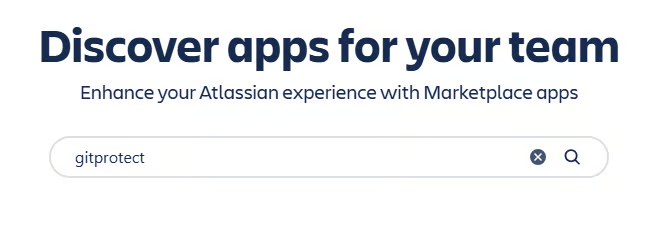
Type gitprotect in the search box and press **Enter**.
{% endstep %}
{% step %}
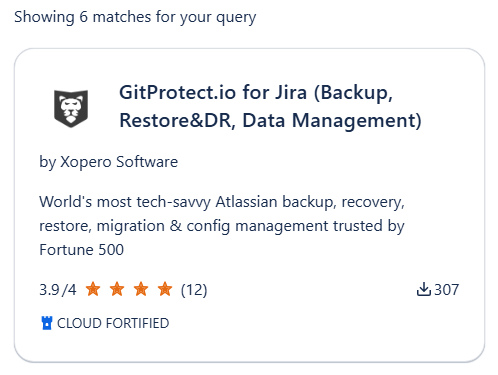
Find the **GitProtect.io for Jira** tile in the search results and click it.
{% endstep %}
{% step %}
On the application page, click the **Try it free** button in the top-right corner.
{% endstep %}
{% step %}
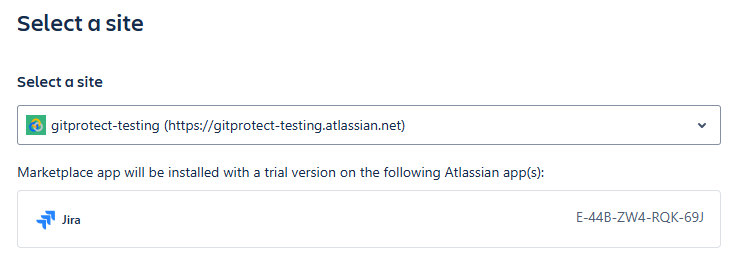
Select the site where **GitProtect.io** will be installed and click **Review** in the bottom-right corner.
{% endstep %}
{% step %}
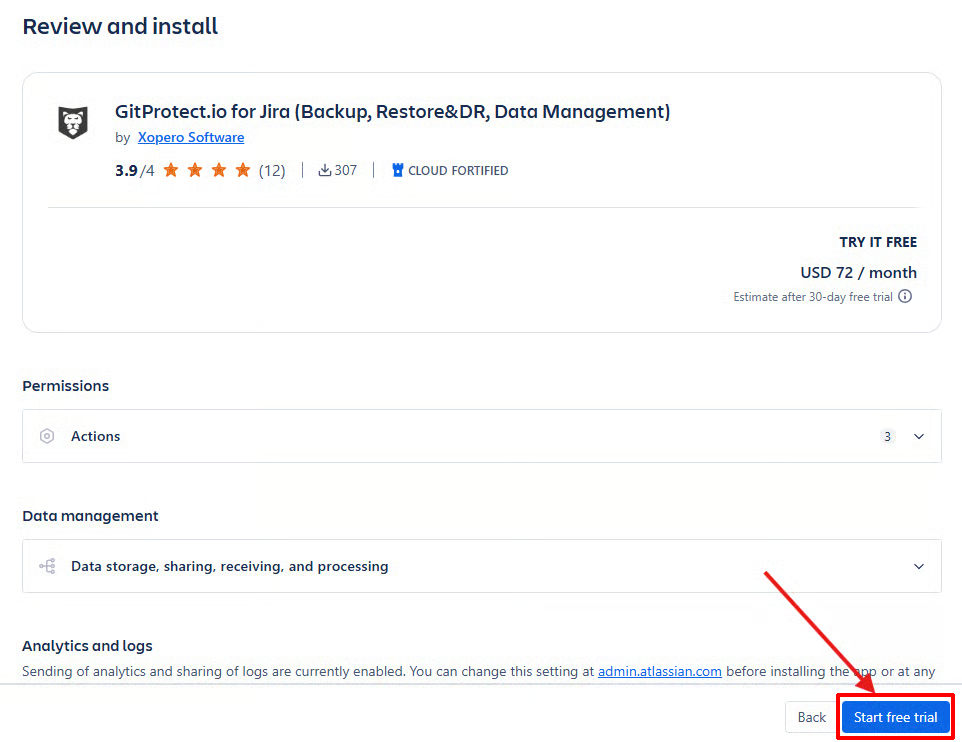
Review your configuration settings and click the **Start free trial** button.
{% endstep %}
{% step %}
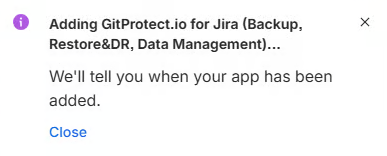
**Atlassian** will add the **GitProtect.io** app to your selected **Jira** site.
{% endstep %}
{% step %}
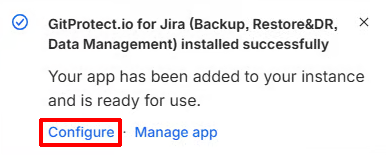
When the **GitProtect.io** app is successfully added to your **Jira** site, a notification pop-up will appear. Select **Configure** to open the app view page.
{% endstep %}
{% step %}
Wait for the installation to complete.
{% endstep %}
{% step %}
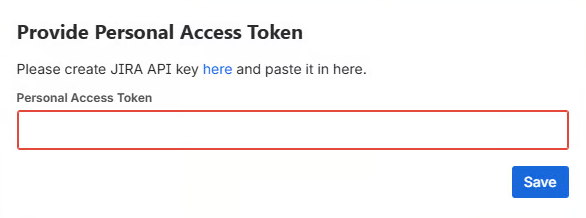
Another pop-up will appear. Enter your personal access token (**Jira** API key) and click **Save** to proceed.
{% endstep %}
{% step %}
After the installation is complete, you will see a confirmation message. Click **Not now** to continue to the **GitProtect.io** app main page, or select **Run Plan** to start your first backup using the default settings.
{% endstep %}
{% step %}
Your **GitProtect** registration and deployment are now complete. Proceed to the [Post-registration actions](#post-registration-actions) section to learn about app features and how to create and manage your **Jira** backups.
{% endstep %}
{% endstepper %}
***
## Post-registration actions
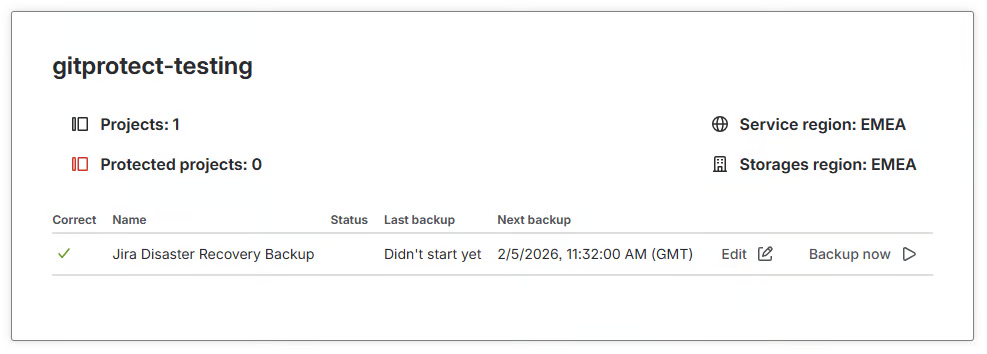
In the **GitProtect.io** app view in **Jira** you can change the plan execution time, manually trigger a backup job, and check your backup status.
To fully manage your **Jira** backups—including setting up backup plans, managing storage, monitoring running tasks, reviewing logs, adding additional accounts, configuring notifications, and using all **GitProtect** features—log in to the **GitProtect Management Service** using the **More features** button in the top-right corner of the app page.
Accessing the **Management Service** does not require additional credentials. You are automatically logged in through the **GitProtect** integration with **Jira**.
{% hint style="info" %}
You can learn more about using the **GitProtect.io for Jira** app in [this section](/management/marketplace/atlassian-marketplace.md).
{% endhint %}
***
## Useful links and items
{% content-ref url="/pages/Rzwit7dBQ9hW6wTnTB0V" %}
[Protected resources](/backup-and-recovery/jira/backup/protected-resources.md)
{% endcontent-ref %}
{% content-ref url="/pages/IkMp2576EOKN31ghd1Q2" %}
[Backup management](/management/marketplace/atlassian-marketplace/backup-management.md)
{% endcontent-ref %}
{% content-ref url="/pages/cVEfVqUyFodKZf9MVgP6" %}
[License management](/management/marketplace/atlassian-marketplace/license-management.md)
{% endcontent-ref %}