> For the complete documentation index, see [llms.txt](https://helpcenter.gitprotect.io/llms.txt). Markdown versions of documentation pages are available by appending `.md` to page URLs; this page is available as [Markdown](https://helpcenter.gitprotect.io/sign-in-and-authentication/two-factor-authentication-2fa.md).
# Two-factor authentication (2FA)
Learn how to enable two-factor authentication in GitProtect.
#### 2FA (two-factor authentication) is a security method that requires two verification factors to confirm a user’s identity, making accounts much harder to compromise even if a password is stolen.
***
## General information
**GitProtect** supports two-factor authentication (aka **2FA**, multi-factor authentication, **MFA**) based on an authenticator application. To use **2FA** with your **GitProtect** account, you have to first enable **MFA** in your **GitProtect Management Service** admin panel, and then set it up.
## Enabling 2FA in GitProtect
{% stepper %}
{% step %}
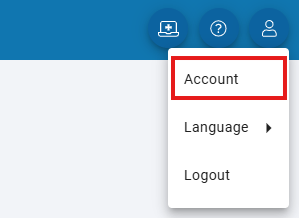
Click your profile icon in the top-right corner of your **Management Service** panel and select **Account**.
Account settings in GitProtect.
{% endstep %}
{% step %}
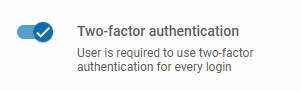
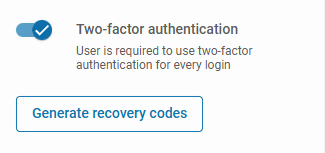
Toggle **Two-factor authentication** button and click **Save** in the bottom-right.
2FA option turned on.
{% endstep %}
{% step %}
You will see the change confirmation in the top-right corner of the screen. Once done, log out of your **Management Service**, then log back in to trigger **2FA** setup.
{% endstep %}
{% endstepper %}
***
## 2FA setup in GitProtect
{% hint style="danger" %}
With **2FA** turned on in **Management Service**, you will be prompted to complete the authenticator app setup during your next login. All subsequent logins will require a successful two-factor verification.
{% endhint %}
{% stepper %}
{% step %}
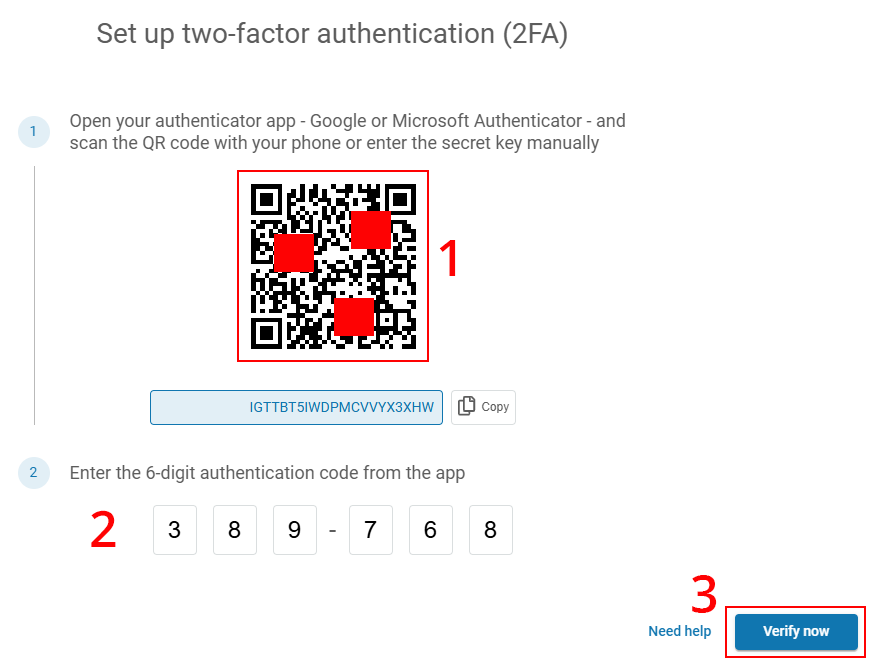
Scan the QR code or copy the secret key to your authenticator app. Enter the code from your authenticator app in the designated fields. Once done, click **Verify now** to finish the application setup.
{% endstep %}
{% step %}
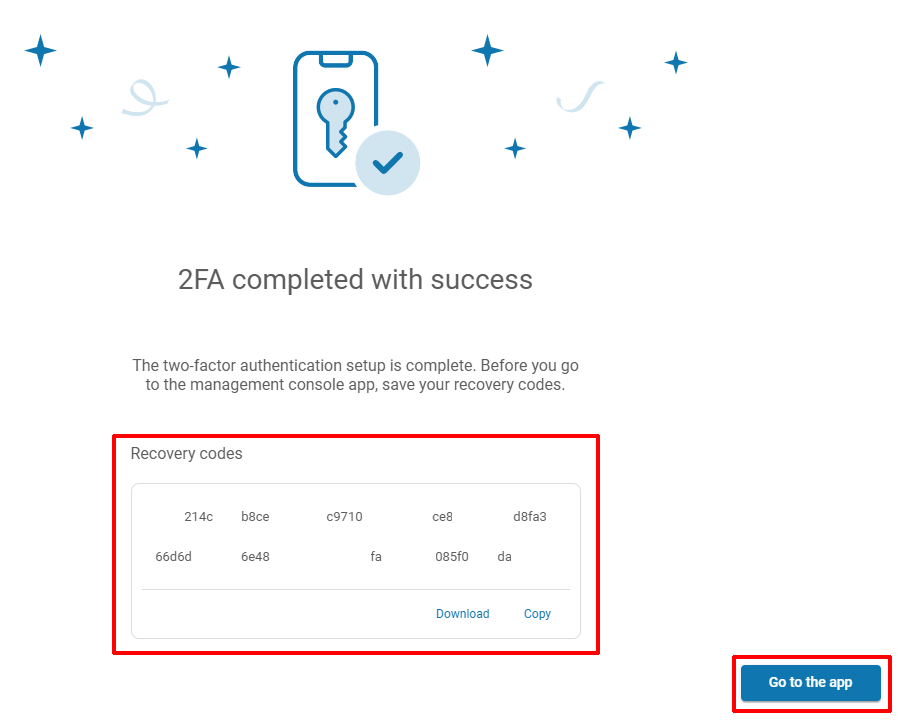
If the verification is successful, you will see a confirmation message.
Below the message you will find your recovery codes — save them before you go to the management console app. If you fail o save the codes right away, you can generate them later in your **Management Service** account settings.
{% endstep %}
{% step %}
Your **MFA** setup is now complete. Next time you login to your **Management Service** panel, you will be prompted to verify yourself with **MFA**.
{% endstep %}
{% endstepper %}
***
## Recovery codes
If you lose access to your authenticator app, you can log in to **Management Service** using one of the recovery codes generated during 2FA setup.
{% hint style="danger" %}
**Each code is valid for a single login only** — once used, it expires.
{% endhint %}
Unused codes do not expire over time; they remain active until used or until new codes are generated, either manually or by re-registering the **2FA**.
If you have used several codes or suspect they have been compromised, you can generate a new set by going to ⚙️ **Settings** > **Accounts** > **Edit account** and clicking **Generate recovery codes** button.
***
## Reconfiguring the authenticator app
{% stepper %}
{% step %}
Log in to your account (use a recovery code if your authentication device is lost or otherwise unavailable).
{% endstep %}
{% step %}
Go to **⚙️ Settings** > **Accounts** > **Edit account**.
{% endstep %}
{% step %}
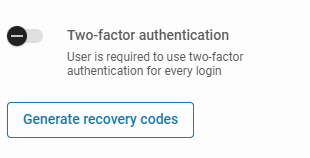
Toggle **Two-factor authentication** off to disable it and **save the change**. Then toggle it back on and **save the change again**.
{% endstep %}
{% step %}
Your 2FA configuration is now reset. During your next sign-in, you will be prompted to complete the authenticator app setup.
{% endstep %}
{% endstepper %}