> For the complete documentation index, see [llms.txt](https://helpcenter.gitprotect.io/llms.txt). Markdown versions of documentation pages are available by appending `.md` to page URLs; this page is available as [Markdown](https://helpcenter.gitprotect.io/storage/cloud-storage/wasabi/adding-new-storage.md).
# Adding new storage
This article explains how to set up a Wasabi bucket as storage in GitProtect.
{% stepper %}
{% step %}
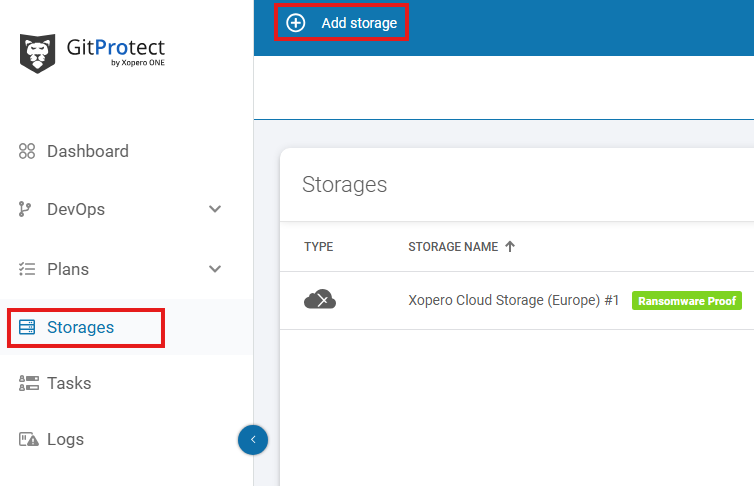
Open the **Storages** section and click **Add storage** button.
{% endstep %}
{% step %}
The **Add storage** sidebar will appear—use it to enter the name of your new storage in the **Add storage name** field (step 1), then click the arrow next to the **Storage type** section (step 2) to expand the list of available storage types.
{% endstep %}
{% step %}
Scroll down the list and select the **Wasabi** option.
{% endstep %}
{% step %}
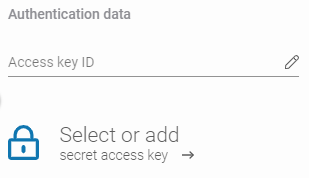
Copy the **access key ID** and **secret access key** from **Wasabi**, paste the **access key ID** to the corresponding field, and click **Select or add secret access key** to open the **Password Manager** menu and add your copied **secret key** to your bucket.
{% hint style="info" %}
To get the **access key ID** and **secret access key**, go to **Access Keys** tab in your **Wasabi** web panel and create new access key. Learn more about access keys in [**Wasabi** official documentation](https://docs.wasabi.com/v1/docs/access-keys-1).
{% endhint %}
{% endstep %}
{% step %}
Click the **Add new** button to add your **Wasabi** **secret access key** to **GitProtect Password Manager**. Enter a password name, then enter the **secret access key** in the **New password** and **Confirm password** fields. Click **Save** to finish.
{% endstep %}
{% step %}
Next, select the region where your bucket is created and enter the bucket name (the bucket name is the unique identifier of the container where your objects are stored) in the appropriate field.
{% hint style="success" %}
You can verify your bucket region on the **Wasabi** platform through the **Buckets** tab.
{% endhint %}
{% endstep %}
{% step %}
Ensure that the browsing machine—a device with an active license and the **GitProtect** **worker** installed—can access your **Wasabi** bucket. To use a different device, click **Change** next to the **Browsing machine** at the bottom.
{% endstep %}
{% step %}
Review your settings and click the **Save** button to add the storage to **GitProtect**. Refresh the page to see the newly added storage on your storages list.
{% endstep %}
{% endstepper %}
.png?alt=media)
.png?alt=media)
.png?alt=media)
.png?alt=media)
.png?alt=media)
.png?alt=media)