> For the complete documentation index, see [llms.txt](https://helpcenter.gitprotect.io/llms.txt). Markdown versions of documentation pages are available by appending `.md` to page URLs; this page is available as [Markdown](https://helpcenter.gitprotect.io/backup-and-recovery/devops/azure-devops-and-devops-server/backup/creating-a-backup-plan.md).
# Creating a backup plan
This article contains information on how to set up Azure DevOps & DevOps Server backup plan.
#### Creating an Azure DevOps (or DevOps Server) backup plan ensures your projects and data are securely protected and easily restorable.
***
## Backup plan setup
{% stepper %}
{% step %}
Login to **GitProtect Management Service**, open the **Plans** > **Backup** tab and click the **Add plan** button in the top bar.
{% endstep %}
{% step %}
Select **Azure DevOps** from the list.
{% endstep %}
{% step %}
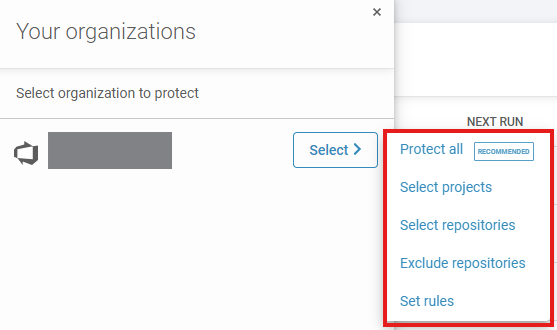
Select (or add) the **Azure DevOps** or **DevOps Server** environment you want to include in the backup process, and choose the repositories to back up.
{% hint style="success" %}
**GitProtect** allows you to protect the entire **Azure DevOps** environment.
{% endhint %}
1. **Protect all** — protects an entire **Azure DevOps** organization.
2. **Select projects** — allows you to protect selected **Azure DevOps** projects (including its metadata).
3. **Select repositories** — protects only **selected repositories**.
4. **Set rules** — lets you set rules for **GitProtect** to automatically select resources to protect.
{% endstep %}
{% step %}
Specify a name for the backup plan.
{% endstep %}
{% step %}
Select the appropriate metadata that you want to back up. Here, you can also change the **default worker**, which is the device directly responsible for the backup process of your repositories.
{% hint style="success" %}
You can have multiple workers and assign different workers to each backup plan.
{% endhint %}
{% endstep %}
{% step %}
Select one of the locations assigned to your **GitProtect** instance as storage.
{% endstep %}
{% step %}
Customize the scheduler and specify how long your data should be retained. If needed, adjust the advanced settings to suit your needs.
{% endstep %}
{% step %}
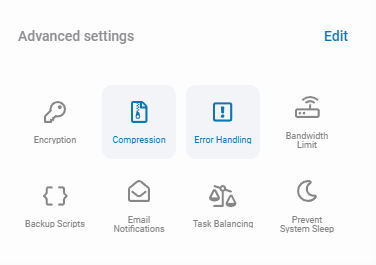
If necessary, adjust the advanced settings such as encryption, error handling, or bandwidth limits to fit your requirements.
{% endstep %}
{% step %}
Double-check your data and click **Save** to create the backup plan.
{% endstep %}
{% endstepper %}
***
## Useful links and items
{% content-ref url="/pages/D9j2y4b4l51BnBsEIyA5" %}
[Cloud storage](/storage/cloud-storage.md)
{% endcontent-ref %}
{% content-ref url="/pages/AWu8w4uJUkVdjFTGajr0" %}
[GitProtect worker](/deployment-and-configuration/gitprotect-worker.md)
{% endcontent-ref %}
{% content-ref url="/pages/9AZUD1hXe2mvU7ncAHPz" %}
[Scheduler & retention](/management/scheduler-and-retention.md)
{% endcontent-ref %}
 **Add plan** button in the top bar.
{% endstep %}
{% step %}
Select **Azure DevOps** from the list.
{% endstep %}
{% step %}
Select (or add) the **Azure DevOps** or **DevOps Server** environment you want to include in the backup process, and choose the repositories to back up.
{% hint style="success" %}
**GitProtect** allows you to protect the entire **Azure DevOps** environment.
{% endhint %}
**Add plan** button in the top bar.
{% endstep %}
{% step %}
Select **Azure DevOps** from the list.
{% endstep %}
{% step %}
Select (or add) the **Azure DevOps** or **DevOps Server** environment you want to include in the backup process, and choose the repositories to back up.
{% hint style="success" %}
**GitProtect** allows you to protect the entire **Azure DevOps** environment.
{% endhint %}