> For the complete documentation index, see [llms.txt](https://helpcenter.gitprotect.io/llms.txt). Markdown versions of documentation pages are available by appending `.md` to page URLs; this page is available as [Markdown](https://helpcenter.gitprotect.io/backup-and-recovery/microsoft-365/backup/creating-a-backup-plan.md).
# Creating a backup plan
Learn how to create a Microsoft 365 backup plan in GitProtect to configure protection for Microsoft Exchange, OneDrive, and SharePoint.
**A reliable backup plan is essential for protecting your Microsoft 365 organization's resources and ensuring business continuity when unexpected events occur.**
***
## Backup plan setup (Microsoft Exchange & OneDrive)
The following steps demonstrate how to create a **Microsoft Exchange** and **OneDrive** backup plan using **GitProtect Management Service**.
{% stepper %}
{% step %}
Open the **Backup** tab (**Plans** > **Backup**) and click the **+ Add plan** button in the top bar.
{% endstep %}
{% step %}
Select **Microsoft 365** from the list.
{% endstep %}
{% step %}
Select the **Microsoft 365 Exchange** option.
{% endstep %}
{% step %}
Click **Select**, then specify whether you want to protect the entire organization or only specific user accounts or shared mailboxes.
{% hint style="success" %}
**GitProtect** supports **Microsoft 365** groups — they appear in the users list and can be used to filter it. If the **Search by group** option is unavailable, re-register your **Microsoft 365** organization to enable it.
{% endhint %}
{% endstep %}
{% step %}
Set up a name for your backup plan.
{% endstep %}
{% step %}
In **Data to protect** section, select the resources that you want to back up. You can also change the default backup agent (worker), which is directly responsible for backing up your **Microsoft 365** data.
{% hint style="success" %}
You can deploy multiple agents and assign different agents to each backup plan.
{% endhint %}
{% endstep %}
{% step %}
Select one of the data stores assigned to your **GitProtect** instance to use as the backup storage.
{% endstep %}
{% step %}
Customize the scheduler and specify the retention period for your data.
{% endstep %}
{% step %}
Adjust the advanced settings, such as encryption, error handling, or bandwidth limit, to meet your organization's requirements.
1. **Encryption**: lets you secure your backup copy with encryption.
2. **Compression**: lets you compress and reduce copy size.
3. **Deduplication:** allows you to reduce the backup size.
4. **Error handling**: allows you to specify how to handle potential backup operation errors.
5. **Bandwidth limit:** allows you to reduce network usage and limit network speed during backup.
6. **Backup scripts:** enables configuring pre/post scripts executed during backup.
7. **Microsoft 365 diagnostics:** lets you enable pre-backup diagnostics, such as the mail message download test.
8. **Task balancing:** balances backup speed and CPU load.
9. **Prevent system sleep:** prevents your system from suspending while a backup is in progress.
10. **Email notifications:** lets you set up email notifications and its recipients.
11. **S3 Buffer Settings:** allows you to specify the buffer size allocated for large resources.
{% endstep %}
{% step %}
Review your configuration and click **Save** to create the backup plan, or **Save\&Run** to start the first backup run immediately.
{% endstep %}
{% endstepper %}
***
## Backup plan setup (SharePoint)
The following steps demonstrate how to create a **SharePoint** backup plan using **GitProtect Management Service**.
{% stepper %}
{% step %}
Open the **Backup** tab (**Plans** > **Backup**) and click the **+ Add plan** button in the top bar.
{% endstep %}
{% step %}
Select **Microsoft 365** from the list.
{% endstep %}
{% step %}
Select the **SharePoint sites** option.
{% endstep %}
{% step %}
Click **Select**, then specify whether you want to protect the entire environment or only specific **SharePoint** sites.
{% endstep %}
{% step %}
Set up a name for your backup plan.
{% endstep %}
{% step %}
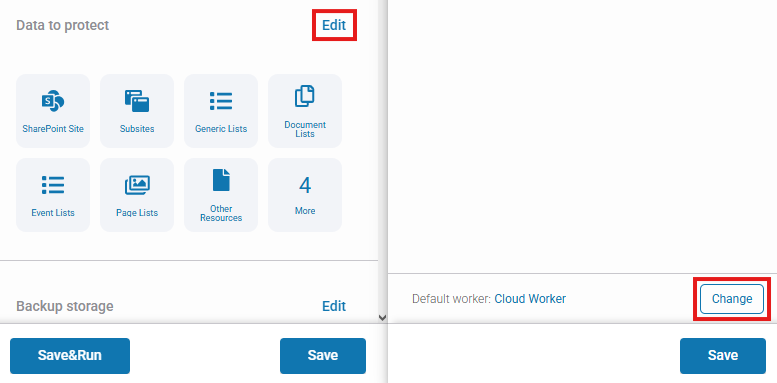
In **Data to protect** section, you can change the default backup agent (worker), which is directly responsible for backing up your **SharePoint** data.
{% endstep %}
{% step %}
Select one of the data stores assigned to your **GitProtect** instance to use as the backup storage.
{% endstep %}
{% step %}
Customize the scheduler and specify the retention period for your data.
{% endstep %}
{% step %}
Adjust the advanced settings, such as encryption, error handling, or bandwidth limit, to meet your organization's requirements.
1. **Encryption**: lets you secure your backup copy with encryption.
2. **Compression**: lets you compress and reduce copy size.
3. **Deduplication:** allows you to reduce the backup size.
4. **Error handling**: allows you to specify how to handle potential backup operation errors.
5. **Bandwidth limit:** allows you to reduce network usage and limit network speed during backup.
6. **Backup scripts:** enables configuring pre/post scripts executed during backup.
7. **Task balancing:** balances backup speed and CPU load.
8. **Prevent system sleep:** prevents your system from suspending while a backup is in progress.
9. **Email notifications:** lets you set up email notifications and its recipients.
{% endstep %}
{% step %}
Review your configuration and click **Save** to create the backup plan, or **Save\&Run** to start the first backup run immediately.
{% endstep %}
{% endstepper %}